Registration Process
Creating an account on JobRadars.com is quick and easy. Follow this step-by-step guide to get started.
Registration Process
Step 1: Visit the Registration Page
Go to the JobRadars.com registration page by clicking "Registration" in the top navigation or visiting this page directly.
Go to RegistrationStep 2: Enter Your Information
Fill in the required fields:
- Email Address: Use a valid email you have access to
- Password: Create a secure password (minimum 8 characters)
- Confirm Password: Re-enter your password to confirm
Step 3: Choose Your Account Type
Select either "Candidate" (job seeker) or "Employer" (hiring). This cannot be changed later, so choose carefully.
- Candidate: For job seekers and professionals looking for opportunities
- Employer: For companies, recruiters, and hiring managers
Step 4: Subscribe to emails
You can check if you want to receive informational and promotional emails from us and our partners.
Step 5: Complete Registration
Click "Register" to submit your registration. You'll be redirected to a confirmation page.
Make sure to read and agree to our Terms and Conditions and Privacy Policy.
Screenshot: Registration form with all fields filled out

Email Verification
After registration, you'll need to verify your email address:
- Check your email inbox for a verification message from JobRadars.com
- Click the verification link in the email
- Your account will be activated and you can start using the platform
📧 Email Not Received?
- Check your spam/junk folder
- Wait a few minutes - emails can take time to arrive
- Make sure you entered the correct email address
- Contact support if you still don't receive it
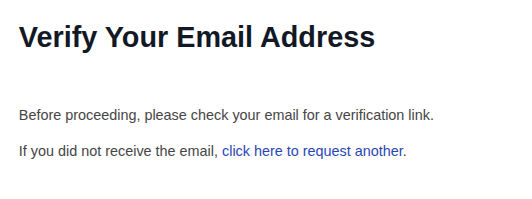
Screenshot: Email verification page
After Registration
Registration Tips
🔒 Password Security
- Use at least 8 characters
- Include uppercase and lowercase letters
- Add numbers and special characters
- Don't use common passwords
📧 Email Best Practices
- Use a professional email address
- Make sure you have access to the inbox
- Avoid temporary or disposable emails
- Add our domain to your whitelist
Common Registration Issues
Email Already Exists
If you see this error, an account with this email already exists. Try logging in instead, or use the password reset feature if you forgot your password.
Form Won't Submit
Make sure all required fields are filled, your passwords match, and you've accepted the terms. Check your internet connection and try again.
Page Not Loading
Clear your browser cache, disable ad blockers temporarily, or try a different browser. Contact support if the problem persists.