Creating Resumes
Learn how to create and manage your resume on JobRadars.com to attract employers and land your dream job.
Getting Started
Your resume is your most important tool for getting noticed by employers. On JobRadars.com, you can create multiple resumes, upload files, and make them visible to hiring managers.
💡 Resume Requirements
- Must be a registered candidate account
- Email verification required
- Supported format for attached file: PDF
- Maximum file size: 5MB
- Professional content recommended
Creating Your First Resume
Step 1: Access Resume Section
Click on "My Account -> My Resumes -> Post a Resume" or go directly to /resumes/create.
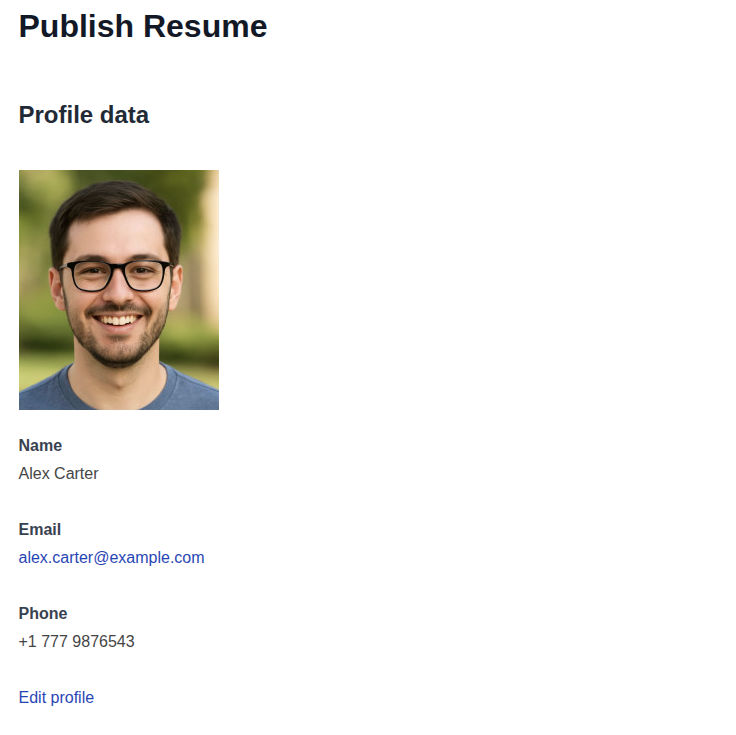
At the top of the page you will see your Profile data (photo, name, email, phone). Make sure your profile information is complete and up-to-date as employers will see this when they view your resume. If you want to change anything in your profile before creating a resume, you can click on the link "Edit profile".
Step 2: Add Resume Data
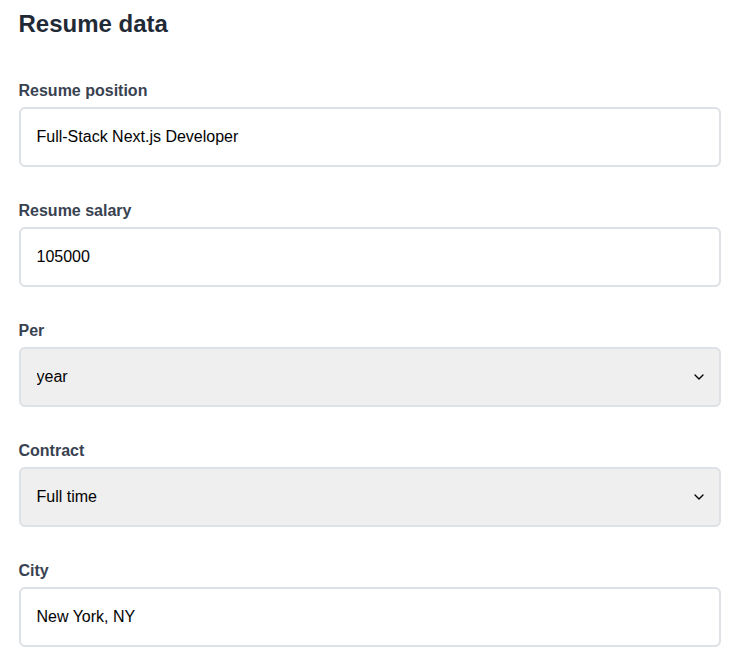
Fill in the resume details:
- Resume Position: Your current or desired job title
- Salary: Optional - your expected salary range
- Contract: Select your preferred contract type (e.g., Full time, Part time, Contractor etc)
- City: Start to type to find and select your city/region
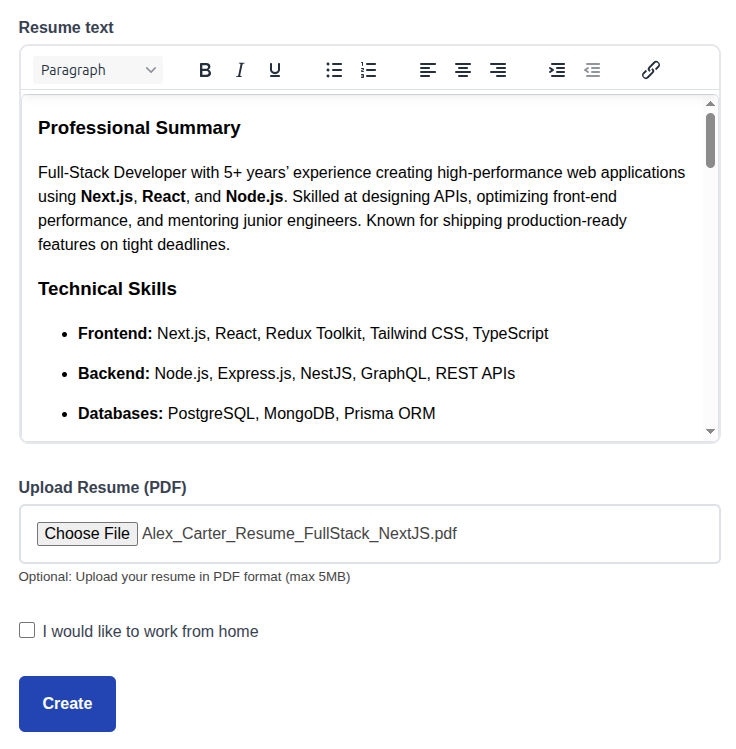
- Resume text: Compose or copy/paste a compelling resume text that highlights your key skills and experience. This text will be visible to employers. Use formatting to enhance readability (e.g., bullet points, headings).
- Upload resume (PDF): Optional - attach a PDF version of your resume for employers to download
- Remote: Specify if you are open to remote work
Step 3: Save and Publish
Review all information and click "Create" to publish it to the platform.
Screenshot: Resume Creation - Profile Data
Screenshot: Resume Creation - Resume Data
Screenshot: Resume Creation - Resume Text and File Upload
Resume Best Practices
✍️ Content Guidelines
- Clear Title: Use descriptive resume titles
- Relevant Keywords: Include industry-specific terms
- Compelling Resume Text: Write engaging resume description
- Accurate Information: Be honest about skills and experience
📄 File Format Tips
- PDF Required: PDFs maintain formatting across devices
- Professional Filename: Use "FirstName_LastName_Resume.pdf"
- Up-to-Date Content: Ensure information is current
- Clean Formatting: Use standard fonts and clear layout
🎯 Optimization Tips
- Location Accuracy: Choose your actual location or location where you want to work
- Salary Expectations: Research market rates
- Regular Updates: Keep information current
Managing Multiple Resumes
You can create multiple resumes tailored for different job types or industries:
Why Create Multiple Resumes?
- Target different industries or job roles
- Highlight relevant skills for each position type
- Customize content for specific opportunities
- Test different formats or approaches
Resume Management Features
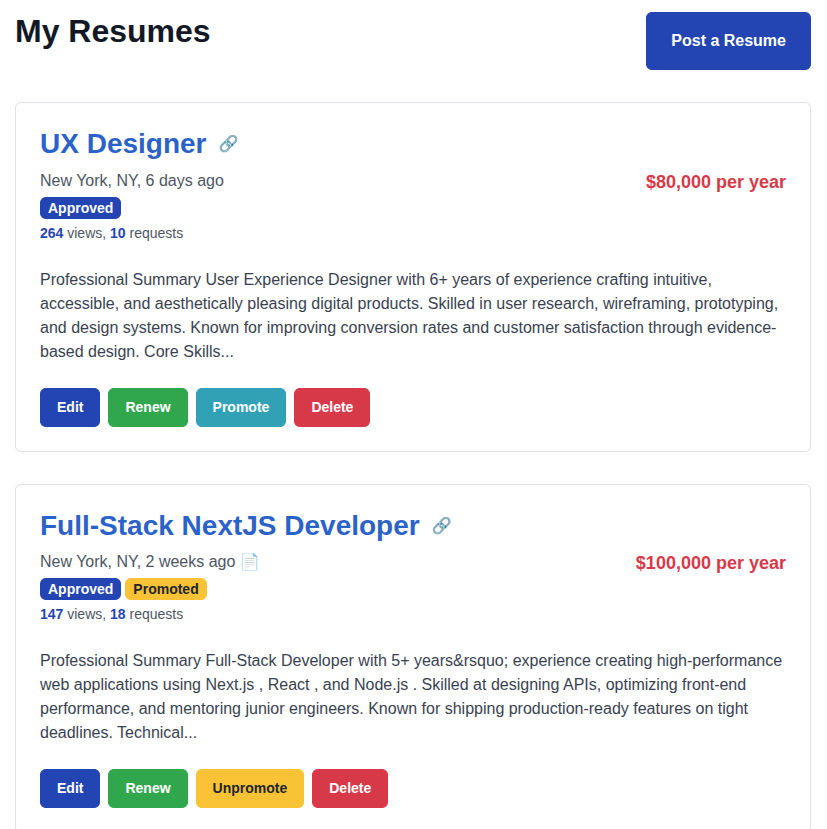
- View all your resumes in one dashboard
- Edit resume details and replace files
- Delete resumes you no longer need
- At any time renew your resumes to update their published date (Click on the "Renew" button under the resume)
Screenshot: My Resumes Page
Resume Features
✅ Statistics
Track how your resumes perform:
- View count statistics
- Track employer interactions
- Monitor resume performance
💬 Support
Get help optimizing your resume:
- Resume optimization tips
- Personalized advice
- Answer your questions
Resume Promotion Package
Want to boost your resume visibility? Purchase a Resume Promotion package to get your resume featured for 30 days.
🚀 Resume Promotion
Get enhanced visibility in employer searches:
- Featured placement in search results
- Priority visibility to employers
- Enhanced resume highlighting
- Increased employer contact likelihood
- Valid for 30 days
🚫 Ad-Free Experience
Browse without distractions while your promotion is active:
- Clean, clutter-free interface
- Faster page loading
- Improved mobile experience
Want to boost your resume visibility?
Purchase Resume PromotionEditing and Updating Resumes
How to Edit Your Resume
- Go to "My Resumes" page
- Find the resume you want to edit
- Click "Edit" button
- Update any fields or replace the file
- Click "Update" to save changes
What You Can Update
- Resume position
- Location and salary expectations
- Resume text
- Replace the resume file
- Change remote work setting
📝 Update Tips
- Keep resumes updated with latest experience
- Replace files when you have a better version
- Update salary expectations based on market changes
- Refresh descriptions to highlight current skills
Resume Visibility and Privacy
Regular Resumes and Encoded Links
🌐 Regular Resumes
Recommended for all job seekers
- Visible to all subscribed employers on the platform
- Searchable in resume database
- Employers can contact you directly
🔒 Public Encoded Links
This option provides a unique link to your resume to view it outside the platform
- Visible to any person with a link
- Use this feature if you want to share your resume outside the platform
- Read more about Encoded Resume Links
Privacy Considerations
- Your contact information is protected
- Employers contact you through the platform
- Your resumes are not visible to search engines like Google or AI services like ChatGPT
- You can delete them anytime
Common Resume Issues
File Upload Fails
Make sure your file is under 5MB and in PDF format. Convert your resume file to PDF if you're having it in other format.
Cannot Edit Resume
Make sure you're logged into the correct account. Only the resume owner can edit their resumes.
Low Employer Interest
Review your resume content, keywords, and job title. Consider Resume Promotion package for enhanced visibility, or update your resume with more relevant skills.
Resume Download Issues
Ensure your uploaded file wasn't corrupted. Try re-uploading the resume file if employers report download problems.