Applied Jobs Tracking
Track your job applications with a powerful dashboard and stay organized throughout your job search.
Feature Overview
Applied Jobs Tracking is a free feature available to all candidates on JobRadars.com. It provides a comprehensive dashboard to monitor all your job applications in one place.
Dashboard Features
Application Status Tracking
Monitor the progress of each application with detailed status tracking:
- Applied: Initial application submitted
- Viewed: Employer has seen your application
- Interview: Interview is scheduled
- Rejected: Application was declined
- Hired: You got the job!
Update statuses as you receive feedback from employers.
Personal Notes & Reminders
Add context and stay organized:
- Write personal notes about each application
- Set follow-up dates and reminders
- Track interview dates and feedback
- Record salary discussions and negotiations
Application History
Complete record of your job search:
- See all applications chronologically
- Track which resume was used for each application
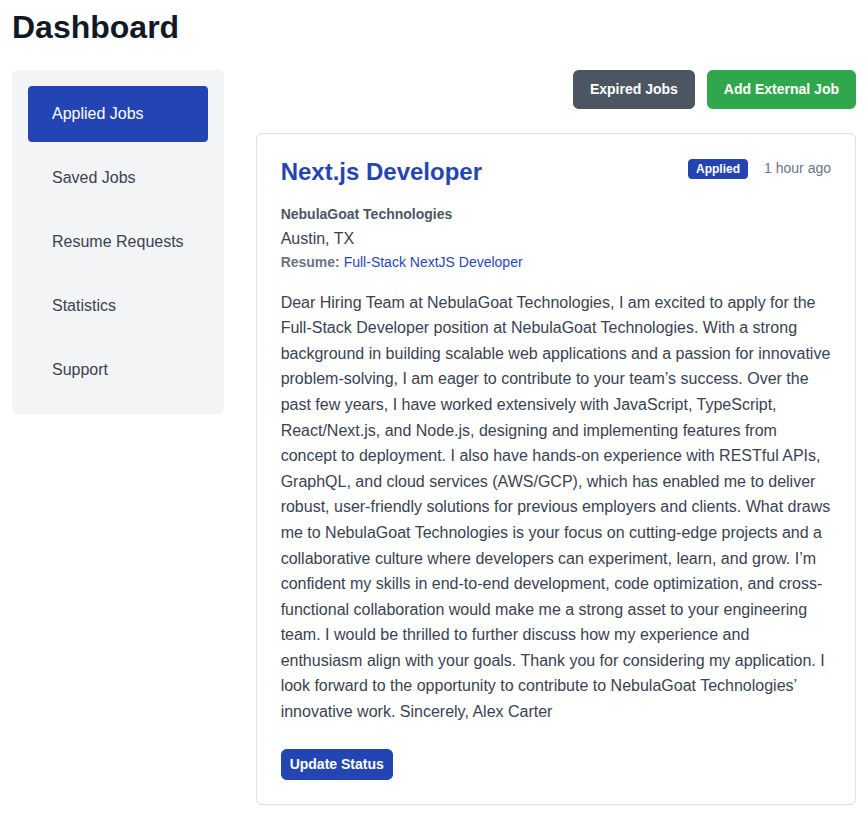
Screenshot: Job Applications in Candidate Dashboard
How to Access Your Dashboard
Step 2: Navigate to Your Dashboard
Once registered and logged in, access your dashboard through:
- Click "My Account -> Dashboard" in the main navigation
- Select "Applied Jobs" from your candidate menu
Step 3: Start Applying to Jobs
Applications made through JobRadars.com will automatically appear in your dashboard.
Using the Dashboard
📊 Dashboard Overview
Your Applied Jobs dashboard provides several views and tools:
Applied Jobs list
- Applied jobs in chronological order
- Each entry shows job title, company, application date, resume you applied with, current status, and notes
- Click on a job to view details or update status/notes
- Click on "Update Status" to change application status, set follow-up date or add notes
Add External Applications
- Manually add jobs you applied to outside of JobRadars.com
- Include job title, company name, location, job URL, and your comments
Managing Application Status
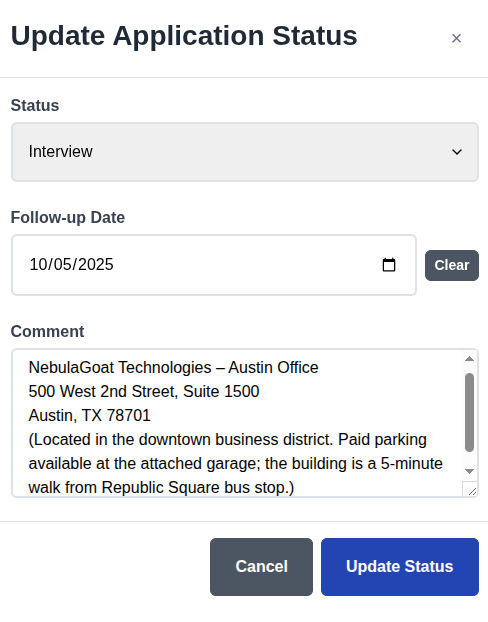
How to Update Status
- Find the application in your dashboard
- Click on "Update Status" button
- Select the new status
- Add follow-up date (optional)
- Add notes about the status change (optional)
- Save your changes
Status Workflow Tips
🎯 Be Proactive
Update status as soon as you receive communication from employers
📝 Add Context
Include notes about interviews, feedback, or next steps
⏰ Set Reminders
Use follow-up dates to stay on top of your applications
Screenshot: Changing Status in Applied Jobs Dashboard
Best Practices for Application Tracking
📅 Regular Updates
- Check your dashboard daily
- Update statuses immediately after communication
- Set aside time weekly for application management
📝 Detailed Notes
- Record interview questions and your responses
- Note salary discussions and benefits offered
- Track feedback received from employers
- Document follow-up actions needed
🎯 Strategic Follow-up
- Use reminder dates effectively
- Follow up at appropriate intervals
- Track which follow-ups get responses
- Learn from successful communication patterns
Troubleshooting
Applications Not Appearing in Dashboard
Only applications submitted directly through JobRadars.com appear automatically in your dashboard. External applications (redirected to company websites) are not tracked unless you marked an external job as applied or added an external application manually.
Cannot Update Application Status
Clear your browser cache and try again. If the issue persists, contact support.
Notes Not Saving
Ensure you click "Update Status" after adding notes. Check your internet connection and try again. Long notes may need to be broken into shorter sections.