Managing Your Profile
Learn how to customize and manage all aspects of your profile.
Profile Overview
Your profile page is your control center for managing all personal information, settings, and preferences on JobRadars.com. From here, you can update your details, change your password, manage email preferences, and control your account.
🔧 Quick Access
Access your profile anytime by clicking "My Account" in the top navigation bar, then selecting "My Profile" from the dropdown menu.
What You Can Manage
👤 Profile Image
Upload and manage your professional photo (candidates) or company logo (employers)
📝 Personal Details
Update your name, phone number, company information, and contact details
🔐 Security Settings
Change your password
📧 Email Preferences
Control what types of emails you receive from JobRadars.com and partners
Subscription Status
Your profile page displays your current subscription status. Premium subscribers see active benefits, while free users see upgrade options to unlock advanced features.
Screenshot: Profile page with all data
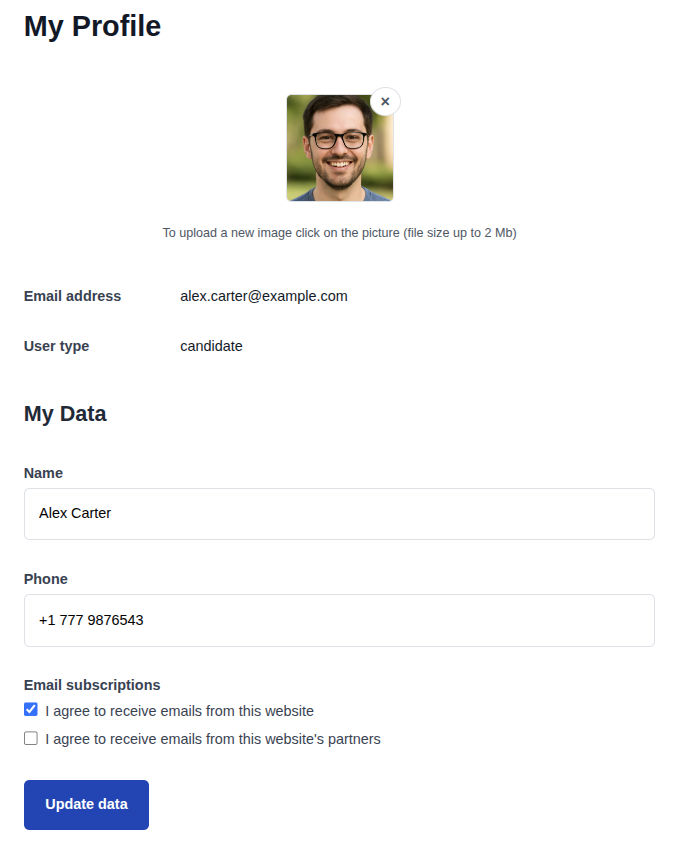
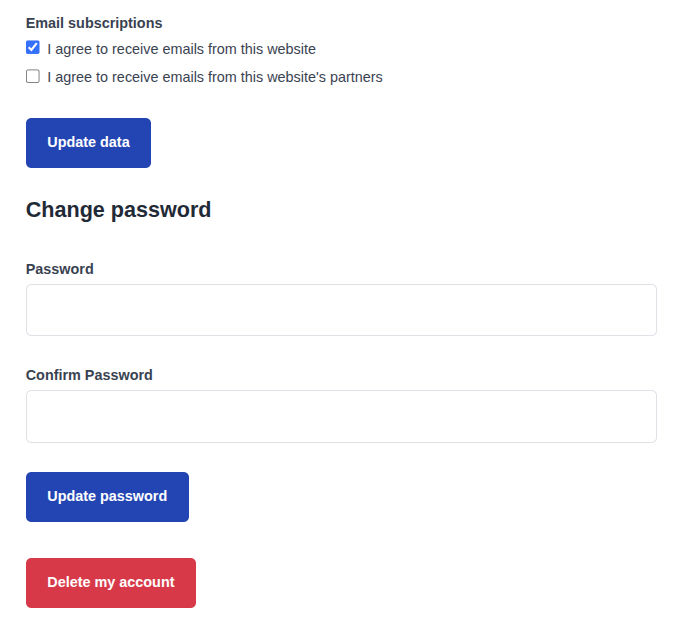
Screenshot: Profile Page Subscriptions Password and Delete Account Section"
Profile Photo or Company Logo
A professional profile image makes a strong first impression. Candidates should upload a professional headshot, while employers can upload their company logo.
For Candidates: Profile Photo
Step 1: Upload Your Photo
Click on the default profile image or camera icon in your profile page. Select a professional photo from your device.
Step 2: Automatic Optimization
Your photo is automatically resized to 200x240 pixels for optimal display across the platform.
Step 3: Instant Update
Your new photo appears immediately on your profile, resumes, and anywhere your name is displayed.
For Employers: Company Logo
Step 1: Upload Logo
Click on the company logo placeholder and select your company logo or brand image.
Step 2: Professional Sizing
Logos are resized to 240x200 pixels to maintain professional appearance on job postings.
Step 3: Brand Visibility
Your logo appears on all job postings, making your company easily recognizable to candidates.
📋 Image Requirements
- File Formats: JPEG, PNG, JPG, GIF
- Maximum Size: 2MB per file
- Recommended: High-quality, professional images
- Automatic Resize: Images are optimized for platform display
💡 Pro Tips
- Use a professional headshot with good lighting for candidate photos
- Company logos should be clear and readable at small sizes
- You can delete and re-upload images anytime using the delete (×) button
- Images enhance your professional appearance and credibility
Personal Information Management
Keep your personal information current and accurate. The fields you see depend on whether you have a candidate or employer account.
👤 Candidate Information
Full Name *
Your professional name as you want it to appear on applications and to employers. This field is required and appears on your resumes and job applications.
Phone Number
Your contact phone number for employers to reach you. This is optional but recommended for better communication with potential employers.
🏢 Employer Information
Company Name *
Your official company name as it should appear on job postings. This is required and represents your brand to candidates.
Company Phone
Main phone number for your company or HR department. Candidates may use this for inquiries.
Contact Person
Name of the primary contact person for hiring and candidate communications.
Company Description
Detailed description of your company, culture, and what makes you an attractive employer.
📧 Account Information
Your email address and account type are displayed for reference but cannot be changed from the profile page. Email is your login credential, and account type determines your available features.
🔄 Updating Your Information
Step 1: Edit Fields
Modify any of the editable fields with your updated information.
Step 2: Save Changes
Click "Update data" to save your changes. The form validates required fields automatically.
Step 3: Confirmation
You'll see a success message confirming your profile has been updated.
Password & Security
Keep your account secure by regularly updating your password and following security best practices.
🔐 Password Requirements
- Minimum 8 characters length
- Must be confirmed by typing twice
- Use a combination of letters, numbers, and special characters (recommended)
- Avoid using personal information like names or birthdays
🛡️ How to Change Your Password
Step 1: Navigate to Password Section
Find the "Change password" section in your profile page.
Step 2: Enter New Password
Type your new password in the "Password" field. Make sure it meets security requirements.
Step 3: Confirm Password
Re-type the same password in the "Confirm Password" field to prevent typing errors.
Step 4: Update Password
Click "Update password" to save your new password. You'll receive confirmation of the change.
🛡️ Security Best Practices
- Change your password regularly (every 3-6 months)
- Use a unique password that you don't use elsewhere
- Consider using a password manager to generate and store secure passwords
- Never share your password with others
- Log out of shared or public computers
⚠️ Important Security Note
After changing your password, you may need to log in again on other devices. This is normal and helps keep your account secure.
Email Preferences
Control what types of emails you receive from JobRadars.com and our partners. You can customize these settings at any time.
📬 Managing Your Preferences
Step 1: Review Options
In your profile, find the "Email subscriptions" section with checkbox options.
Step 2: Make Your Choices
Check or uncheck boxes based on your preferences. You can choose one, both, or neither option.
Step 3: Save Preferences
Click "Update data" to save your email preferences along with other profile changes.
📋 Email Policies
- You can change your email preferences anytime
- Some essential account emails (like password resets) are always sent
- We respect your choices and never spam
- Partner emails are carefully curated and relevant to your professional interests
- You can unsubscribe from any email using the links provided in each message
Account Management & Deletion
You have full control over your JobRadars.com account, including the option to permanently delete it if needed.
🗑️ Account Deletion Process
If you decide to leave JobRadars.com, you can permanently delete your account and all associated data.
Step 1: Access Deletion Option
At the bottom of your profile page, find the "Delete my account" button.
Step 2: Confirm Deletion
A confirmation dialog will appear asking you to confirm the permanent deletion.
Step 3: Final Confirmation
Click "Delete" in the confirmation dialog to permanently remove your account.
⚠️ IMPORTANT: What Gets Deleted
For Candidates:
- All resumes and personal information
- Job application history
- Saved jobs and bookmarks
- Profile photos and uploaded files
For Employers:
- All posted jobs and job history
- Company information and logos
- Candidate communications and notes
- Subscription and billing history
For All Users:
- Account access is permanently lost
- Email address can be reused for new account
- All data is completely removed from our systems
- This action cannot be undone
🤔 Consider These Alternatives
Temporary Deactivation
Instead of deleting, consider changing your email preferences to stop notifications while keeping your account for future use.
Data Download
Before deleting, contact support if you need copies of your resumes, job postings, or other important data.
Account Type Change
If you need different features, consider creating a new account type rather than deleting your existing one.