Saved Jobs
Learn how to save jobs for later review and build your personal job collection.
Feature Overview
JobRadars.com allows you to save interesting job postings for later review. This feature is available for free to all candidates.
How to Save Jobs
- Look for the bookmark icon ♡ on each job listing
- Click the bookmark to save the job
- The icon will change color to indicate it's saved
- Click again to unsave the job
Screenshot: Bookmark Icon on Job Listing

Managing Your Saved Jobs
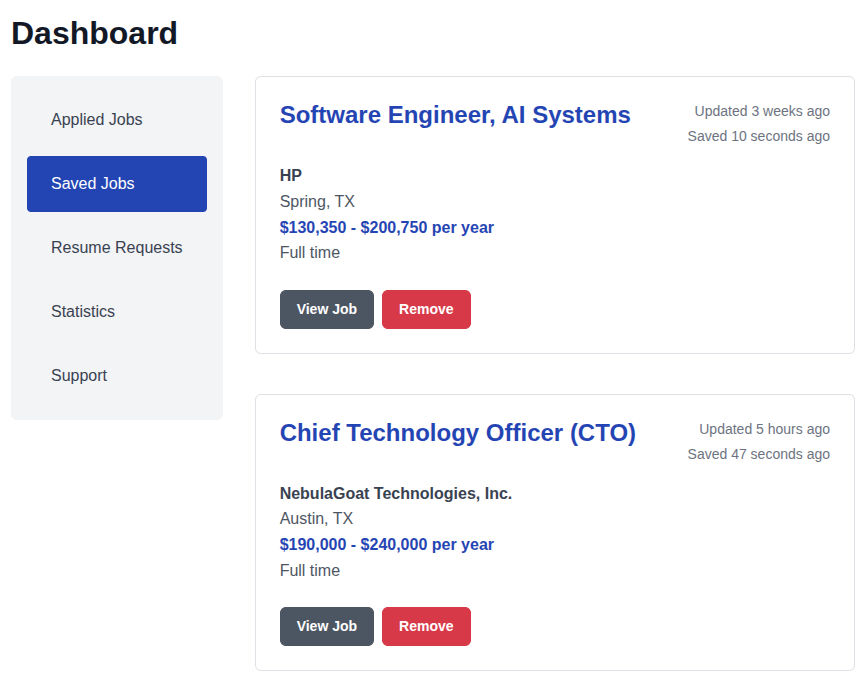
- Click "Saved Jobs" in your candidate dashboard
- Click "View Job" to see details
- Click "Remove" to unsave the job
Screenshot: Saved Jobs Page
Using Saved Jobs for Applications
From Saved to Applied
- Review Your Collection: Go through your saved jobs regularly
- Prepare Materials: Choose the right resume and write cover letters
- Apply Strategically: Submit applications during optimal times
- Track Progress:Use your Applied Jobs dashboard to monitor application status
Troubleshooting Saved Jobs
Bookmark Icon Not Working
Make sure you're logged in to your account. Clear browser cache and cookies. If using ad blockers, try disabling them temporarily. Check your internet connection.
Saved Jobs Disappeared
Jobs may be removed if they expire or are filled by employers. Contact support if jobs disappear unexpectedly.